
| Modern Keyboard Architecture | |
|---|---|
| Primary Inventor | Christopher Latham Sholes (1868) |
| Definitive Ancestor | 19th Century Mechanical Typewriter |
| Global Market (2026) | $2.66 Billion to $2.79 Billion |
| Projected Value (2033) | $7.61 Billion |
| CAGR Growth | 11% to 15.4% |
| Primary Logical Layouts | QWERTY, Dvorak, Colemak |
| Physical Standards | ANSI, ISO, JIS |
| Core Switch Types | Mechanical, Optical, Hall Effect |
| Max Polling Rate | 8000Hz (0.125ms latency) |
| Keycap Plastics | ABS, PBT |
| Legend Printing | Double-Shot, Dye-Sublimation |
| Enthusiast Firmware | QMK, VIA, ZMK |
| Typing Platforms | Monkeytype, Keybr, TypeRacer |
| High-Speed Input | Stenography (Chording) |
| Open Source Firmware | QMK Official Portal |
| Training Platform | Monkeytype |
The computer keyboard remains the definitive and most ubiquitous conduit for human-computer interaction. It represents a highly evolved intersection of mechanical engineering, materials science, ergonomics, firmware development, and cognitive psychology. Despite the advent of graphical user interfaces, voice recognition algorithms, and capacitive touchscreen displays, the physical keyboard has not only survived but has evolved into a highly specialized, hyper-customizable peripheral.
The modern keyboard ecosystem spans an enormous spectrum. It ranges from ultra-thin laptop scissor switches optimized for extreme portability to heavy, custom-machined mechanical assemblies. These premium setups are meticulously designed for unparalleled tactile feedback, low-latency esports performance, and highly specific acoustic resonances. This exhaustive report provides a massive deep-dive analysis of modern keyboard technologies. We will trace their historical lineage, identify the original inventor, dissect their hardware architectures, map out all functional shortcuts across operating systems, and evaluate the explosive market dynamics shaping text input in 2026 and beyond.
1. History of the Keyboard
To fully understand the modern peripheral, we must answer a fundamental question: who discovered or invented the keyboard? The conceptual discovery and invention of the modern keyboard layout is universally credited to Christopher Latham Sholes. Alongside Samuel W. Soule and Carlos Glidden, Sholes patented the first practical mechanical typewriter in 1868.
The architecture of the modern computer keyboard is inextricably linked to the mechanical constraints of Sholes’ 19th-century invention. The physical staggered layout of modern keyboards, where rows are shifted slightly to the left or right relative to one another, does not exist for any ergonomic benefit. Rather, it originates from the strict physical necessity of routing mechanical typebars to strike an ink ribbon without jamming. Sholes designed the QWERTY layout specifically to separate common letter pairs, forcing the typist to slow down just enough to prevent these mechanical tangles.
As early as the 1870s, teleprinter devices utilized keyboard interfaces to simultaneously type and transmit stock market text data across telegraph lines. By the mid-20th century, the keyboard had transitioned from a purely mechanical device to an electromechanical data entry tool used in keypunches and teletype terminals.
During the 1970s and 1980s, early personal computer keyboards utilized highly durable, complex, and heavy mechanical switches. IBM established the absolute gold standard with its patented buckling spring mechanism, found most notably in the iconic Model M keyboard. In this design, a coil spring buckles under the pressure of the user’s finger, swinging a hammer that bridges a membrane circuit. These early devices were incredibly heavy and required significant actuation force, which often led to hand fatigue over prolonged computing sessions.

In the late 1990s and early 2000s, manufacturers shifted heavily toward membrane and rubber dome keyboards. By utilizing a continuous rubber membrane rather than individual mechanical switches, manufacturers drastically reduced production costs and achieved much slimmer profiles. While this democratization was economically vital to making PCs affordable, it completely sacrificed the tactile feedback and hardware longevity of older models. Fortunately, the last decade has seen a massive resurgence in discrete mechanical switches, driven initially by the competitive esports industry and subsequently fueled by a passionate enthusiast community seeking specialized typing experiences.
2. Types and Layouts
The physical layout of a keyboard dictates its desktop footprint, its ergonomic profile, and the availability of dedicated hardware keys. Today, keyboards are strictly categorized by their percentage relative to a standard full-size layout.
| Form Factor | Key Count and Description | Ergonomic and Use Case Implication |
|---|---|---|
| Full-Size (100%) | 104 to 108 keys. Includes the alphanumeric cluster, navigation cluster, F-row, and a dedicated numeric keypad. | Ideal for data entry, finance, and simulation gaming. Ergonomically suboptimal as the wide footprint forces the user’s mouse arm far outward, increasing shoulder strain. |
| 1800-Compact (96%) | 96 to 100 keys. Retains the numpad but compresses the navigation and arrow keys into a single contiguous block. | Offers full functionality while saving desk space. Requires muscle memory adjustment due to non-standard navigation key placement. |
| Tenkeyless (TKL / 80%) | 87 keys. Eliminates the numeric keypad while preserving the standard layout of all other clusters. | The universal standard for mainstream gaming and general typing, allowing the mouse to sit closer to the body’s centerline for improved posture. |
| 75% Layout | 84 keys. Similar to TKL but compresses all keys together without gaps, aligning the F-row and navigation keys vertically on the right edge. | Highly efficient use of space. Popularized by modern custom keyboards and premium laptop layouts, balancing function and form perfectly. |
| 65% Layout | 68 keys. Removes the F-row entirely (accessed via an Fn layer) but retains dedicated arrow keys and a few navigation keys. | The favored sweet spot for custom keyboard enthusiasts and gamers who need arrow keys but prefer a minimalist, clean aesthetic. |
| 60% Layout | 61 keys. Contains only the alphanumeric block and primary modifiers. Arrow keys and F-keys are relegated entirely to software layers. | Maximizes mouse space for competitive esports. Requires significant reliance on function layers, presenting a steep learning curve for office work. |
| 40% Layout | Approx 40 to 50 keys. Removes the number row entirely, leaving only letters and basic modifiers. | An ultra-minimalist, enthusiast-only layout designed so the fingers never have to leave the home row, though it requires extensive memorization of layers. |
3. Ergonomic, Split, and Alternative Architectures
To combat Repetitive Strain Injury (RSI) and Carpal Tunnel Syndrome, ergonomic keyboards fundamentally alter the physical geometry of the keys. Split keyboards physically separate the left and right halves into two distinct units. This allows the user to type with their arms placed perfectly shoulder-width apart and their wrists at a neutral, un-kinked angle. Advanced ergonomic boards utilize a feature called “tenting” to raise the center of the keyboard, reducing forearm pronation.
Furthermore, while standard keyboards use a row-staggered layout inherited from old typewriters, many modern ergonomic boards use ortholinear or columnar stagger layouts. An ortholinear layout aligns keys in a perfect vertical and horizontal grid. A columnar stagger layout aligns the keys in vertical columns that are staggered at different heights to match the natural varying lengths of human fingers, with the middle finger column sitting the highest. This dramatically reduces horizontal finger travel and strain. The biomechanical consensus heavily leans toward columnar stagger for maximum fatigue reduction in professional typists.
Beyond traditional rigid plastics, alternative physical paradigms have emerged for nomadic or industrial use cases. Flexible or roll-up keyboards, typically manufactured from continuous medical-grade silicone, are fully water-resistant and dust-resistant. Virtual or laser projection keyboards emit a red infrared grid onto any flat surface, detecting where the user’s fingers break the light beams. While highly portable and futuristic, projection keyboards lack any tactile feedback, making high-speed touch typing incredibly difficult.
4. The 104-Key Layout
The standard 104-key ANSI keyboard is a complex accumulation of decades of computing history, hardware constraints, and software evolution. The board is divided into distinct clusters, each serving highly specific functional roles for the operator.
Alphanumeric and Primary Modifiers: This central block houses the letters, numbers, and primary punctuation. Modifiers alter the function of these keys. Shift accesses uppercase letters and secondary characters on the number row. Ctrl (Control) or Cmd (Command) is the primary shortcut modifier for executing system commands. Alt (Alternate) or Option is used for secondary shortcuts and special character inputs. The Alt Gr (Alternate Graphic) key, found predominantly on ISO international layouts, accesses a third level of characters like regional currency symbols or unique language accents.
Modern Additions: The Windows or Meta key summons the OS start menu and serves as a powerful modifier for system-level window management. The Copilot Key is a major modern addition to 2024 and newer Windows keyboards, replacing the right Windows or Menu key to instantly summon Microsoft’s artificial intelligence assistant. The Fn (Function) key is a strict hardware-level modifier that triggers secondary layers on the keyboard itself, like media controls or RGB backlight adjustments, without ever sending an OS-level scan code to the computer.
Navigation and Editing Cluster: Positioned between the alphanumeric block and the numpad, these keys navigate documents without requiring the user to reach for the mouse. Arrow keys control directional movement. Insert toggles between insert mode and overtype mode in text editors. Backspace deletes the character to the left of the cursor, while Delete removes the character to the right. Home and End instantly move the cursor to the absolute beginning or end of a line.
5. Function Keys and System Keys
Standard keyboards feature keys F1 through F12, historically used to trigger software-specific commands like F1 for Help or F5 for Refresh. Less known is the existence of the extended function keys, F13 through F24. These keys are remnants of old IBM mainframe terminals like the 5250 where they were physically present on the board. Today, they can still be triggered on modern operating systems using Shift + F1 (to trigger F13) up to Shift + F12 (to trigger F24). Power users, macro programmers, and software developers frequently map these “dead keys” to complex macro pads like the Elgato Stream Deck to avoid any shortcut conflicts with existing applications.
Perhaps the most misunderstood keys on the standard layout sit directly above the navigation cluster. These three buttons trace their deep roots back to the mainframe terminal and telegraph era.
- Print Screen / SysRq: Originally, hitting Print Screen dumped the literal text on the screen directly to an attached printer. Today, it copies a bitmap image of the screen to the clipboard. Its alternate function, SysRq (System Request), was a low-level hardware command designed to bypass the operating system entirely and communicate directly with the BIOS. While largely ignored in Windows today, it remains a critical command in Linux kernels for executing safe emergency reboots when the system has otherwise frozen.
- Scroll Lock: Originally implemented on the IBM PC to toggle the behavior of the arrow keys in ancient spreadsheet software like Lotus 1-2-3. Engaging Scroll Lock allowed the user to pan the entire visible window while keeping the cursor locked in place. Today, it is largely obsolete save for specific hardware KVM (Keyboard, Video, Mouse) switch toggles.
- Pause / Break: Rooted directly in 19th-century telegraph circuits, the Break key was designed to literally break the electrical circuit and halt command-line program execution or interrupt modem connections. Today, it is primarily used in developer IDEs, to pause hardware POST boot screens, or simply as an assignable macro key.
6. Typing Standards and Layouts
While the physical form factor dictates the hardware, the logical layout determines the software mapping of those keys. The size and shape of specific modifiers are governed by strict regional standards across the globe.
ANSI (American National Standards Institute) is the undisputed standard in the US, featuring a wide horizontal 2.25u Enter key, a 2.25u left Shift, and a standard 6.25u Spacebar. Because of its popularity, ANSI is the most widely supported layout for aftermarket custom keycaps. ISO (International Organization for Standardization) is common in Europe, characterized by a massive inverted L-shaped Enter key, a short 1.25u left Shift, and an additional key adjacent to the left Shift. Sourcing custom ISO keycaps is notoriously difficult in the enthusiast market. JIS (Japanese Industrial Standard) features a highly unique split Backspace, a tall Enter key, a short Spacebar, a long left Shift, and dedicated bottom-row keys for toggling Kana input.
The QWERTY layout remains dominant globally due to profound historical path dependency. Originally designed by Sholes to separate common letter pairs to prevent mechanical typebars from tangling, it is demonstrably inefficient for modern touch typing, placing many common letters off the home row. To overcome this, alternative layouts have been developed. Dvorak places the most common English vowels on the left home row and common consonants on the right, minimizing total finger travel. Colemak is a modern alternative that retains the placement of many QWERTY keys like Z, X, C, and V for easy OS shortcuts while heavily optimizing the home row for efficiency and sequential inward finger rolls.
7. Switches and Key Sensing
The core engine of any keyboard is its switch technology, which dictates the actuation force, total travel distance, acoustic profile, and long-term hardware longevity.
| Switch Technology | Mechanism of Action | Typist Experience and Durability |
|---|---|---|
| Mechanical (Contact) | Features a physical plastic stem that glides down a housing to press two copper leaves together, completing an electrical circuit. Available in Linear, Tactile, and Clicky variants. | Highly customizable, consistent, and exceptionally durable (50 to 100+ million presses). Forms the absolute backbone of the custom enthusiast and competitive gaming markets. |
| Membrane / Rubber Dome | A silicone or rubber dome collapses under pressure, pushing a conductive pad onto a membrane circuit layer to register the stroke. | Quiet and inexpensive, but often yields a mushy typing feel with variable actuation consistency. Highly prone to rubber dome degradation and tearing over time. |
| Scissor-Switch | A critical refinement of the rubber dome, utilizing interlocking X-shaped plastic stabilizers to keep low-profile keycaps perfectly level during actuation. | The universal standard in laptops. Offers short travel, snappy tactile response, and excellent stability, though they are notoriously fragile and difficult to repair. |
| Optical | An infrared light beam is continuously transmitted across the switch housing. Pressing the stem blocks or permits the light, registering the stroke without physical metal contact. | Immune to metal oxidation and physical debounce delay, theoretically offering faster response times and exceptional longevity for dusty environments. |
| Hall Effect (Magnetic) | Uses a magnet housed inside the stem and a Hall Effect sensor mounted on the PCB to measure the exact analog distance of the keypress based on changing magnetic field strength. | The absolute pinnacle of modern gaming technology. Allows for adjustable actuation points and Rapid Trigger features, where the key resets the exact instant it is lifted. |
8. Keycaps, Materials, and Manufacturing
Keytops provide the tactile interface between the user and the switch mechanism. The user experience is heavily defined by the keycap’s material chemistry, its profile shape, and the manufacturing process used to apply its printed legend.
ABS (Acrylonitrile Butadiene Styrene) is a softer plastic that produces a crisp, high-pitched acoustic signature. It allows for highly vibrant, saturated colors and sharp legends. However, ABS is highly prone to wear. The friction from typing eventually polishes the micro-textured surface, resulting in a permanent, unsightly shine that plagues older keyboards. PBT (Polybutylene Terephthalate) is a denser, highly durable plastic resistant to harsh solvents, heat, and finger friction. PBT maintains its matte, textured finish for years without shining. It generally produces a deeper, lower-pitched sound profile known affectionately as a “thock”.
| Manufacturing Method | Process Description | Durability and Visuals |
|---|---|---|
| Double-Shot Injection | The gold standard. Two separate layers of plastic are injection-molded together. The legend is literally a physical piece of secondary plastic extending through the entire depth of the keycap. | Legends can never fade, chip, or wear away. It is the only method that allows for seamless RGB shine-through if translucent plastic is used for the legend layer. |
| Dye-Sublimation (Dye-Sub) | High heat is used to vaporize a specialized dye, which penetrates deep into the pores of PBT plastic. | Extremely durable and immune to chipping. However, it cannot be used to print lighter legends on darker plastics, nor does it allow for RGB shine-through. |
| Laser Etching / Engraving | A laser burns the legend into the surface of the cap, or burns away a top coat of paint to reveal translucent plastic beneath. | Common in budget backlit keyboards. Highly prone to wear, as the exposed paint edges can chip over time, ruining the aesthetic. |
| Pad Printing / UV Printing | Ink is stamped onto the top of the keycap, often sealed with a UV clear coat. | The cheapest method and the fastest to degrade. The raised ink layer is easily chipped away under fingernail friction. |
Keycap Profiles dictate the height, shape, and sculpted angle of the rows. Cherry and OEM are the most ubiquitous profiles on the market. They feature a sculpted, cylindrical design where each row is angled slightly differently to cradle the fingers naturally. SA and MT3 are tall, vintage-style profiles with spherical, cupped tops that deeply cradle the fingertips. They produce a deep, resonant acoustic signature but require elevated wrists to type comfortably. DSA and XDA are uniform profiles where every single row is exactly the same height and shape, making them highly versatile for alternative layouts.
9. Acoustic Tuning and Enthusiast Modifications
In the enthusiast mechanical keyboard space, a keyboard’s acoustic profile is scrutinized as heavily as its typing feel. Sound is often categorized subjectively as thock (a deep, low-pitched, bassy sound resembling a dropping marble) or clack (a higher-pitched, crisp sound). Enthusiasts perform extensive modifications to fine-tune the acoustics, eliminate unwanted reverberation, hollow case noise, and metal spring ping.
Lubricating the internal friction points of a mechanical switch is paramount for achieving a smooth, creamy feel and a deeper sound signature. Krytox 205g0 is a thick grease heavily favored for linear switches and stabilizers. It effectively eliminates scratchiness and significantly deepens the acoustic profile. Tribosys 3203 is a thinner grade lubricant optimized for tactile switches. Using overly thick grease on a tactile switch can fill the contact legs and eradicate the tactile bump, whereas 3203 provides friction reduction while preserving the crisp tactile event. Krytox 105 is a thin oil used specifically to lubricate the metal coil springs inside the switch, eliminating high-pitched metallic pinging.
Common Acoustic Architectural Mods: The Tape Mod or Tempest Mod involves applying layers of painter’s masking tape to the underside of the Printed Circuit Board (PCB). This acts as a high-pass acoustic filter, reflecting certain sound frequencies back up through the switches resulting in a distinct poppy or thocky sound. Foam Dampening involves inserting specialized materials like EVA foam, Poron, PE switch pads, or Polyfill into the empty cavities of the case to absorb high frequencies. The Force Break Mod applies small pieces of tape between the top and bottom halves of an aluminum chassis to break the transfer of metallic vibrations, removing inherent case ping.
10. Speed and Performance: Latency, Scan Rate, and Polling Rate
For competitive gaming and high-speed typing, the velocity at which an electrical input translates to an on-screen action is absolutely critical. Total system latency is a complex pipeline governed by switch debouncing, internal MCU scan rates, and USB polling rates.
These two metrics are frequently confused but represent distinct stages of data processing. The Scan Rate defines how frequently the keyboard’s internal Microcontroller Unit checks the matrix of columns and rows to detect if a physical switch has been closed. Measured in Hertz, a high scan rate ensures the hardware detects the finger press instantly. The Polling Rate defines how frequently the host computer checks the keyboard’s USB controller for new input data to process into the operating system.
These metrics are deeply intertwined. If a keyboard boasts an 8000Hz polling rate but utilizes a sluggish 1000Hz internal scan rate, the peripheral is simply transmitting redundant, unchanged data 7,000 times a second. To achieve true sub-millisecond latency, the internal scan rate must match or exceed the external polling rate. The current industry standard polling rate is 1000Hz, reporting every 1.0ms. The emergence of 8000Hz polling microcontrollers has reduced the reporting interval to a mere 0.125ms. Cutting-edge Hall Effect keyboards now push boundaries further, with boards like the ATK RS6 boasting 0.16ms latency, and the Wooting 80HE at 0.42ms.
| Connectivity Type | Typical Polling Rate | Base Latency and Performance Impact |
|---|---|---|
| Wired (USB-C) | Up to 8000Hz | Delivers the absolute lowest baseline latency (0.16ms to 1.5ms). Immune to radio frequency interference. Mandatory for professional esports. |
| 2.4GHz Wireless | Typically 1000Hz | Utilizes a dedicated USB dongle operating on an optimized frequency band. Introduces only 0.5ms of motion sync penalty over a wired connection, making it visually indistinguishable from wired for 99% of gamers. |
| Bluetooth (BLE) | Typically 125Hz | Optimized for battery efficiency, not speed. Requires a complex pairing handshake introducing massive base latencies ranging from 25ms to over 100ms. Entirely unsuited for gaming. |
11. Firmware and Custom Settings
Modern mechanical keyboards are no longer static plug-and-play devices. They are highly programmable computing nodes running sophisticated, open-source firmware, enabling deep customization of the user experience.
QMK (Quantum Mechanical Keyboard) is the absolute gold standard, open-source firmware based on the AVR and ARM toolchains. QMK allows users to map keys, program complex macros, dictate RGB lighting, and create highly dynamic key-mapping layers. This includes advanced functions like Tap Dance, where tapping a key outputs the letter A, but holding it outputs Shift. However, compiling QMK natively requires command-line interface knowledge.
VIA and Vial are Graphical User Interfaces that run on top of QMK-compatible boards. They allow users to instantly remap keys and create macros visually without needing to manually write code, compile, or flash firmware. Vial is particularly praised for its ability to auto-detect keyboards without requiring manual configuration file uploads.
ZMK is a modern, open-source firmware built specifically on the Zephyr RTOS to handle the strict power-management complexities of wireless, Bluetooth-based keyboards. It natively supports wireless bridging for split designs that require independent batteries in each half to communicate seamlessly.
12. Keyboard Shortcuts and OS Use
Mastery of keyboard shortcuts heavily reduces reliance on the mouse, drastically accelerating digital workflows and productivity by keeping the hands anchored to the home row. The following tables provide an exhaustive map of essential shortcuts across various operating systems and applications.
| Action | Windows / Linux Shortcut | macOS Shortcut |
|---|---|---|
| Switch Active App / Window | Alt + Tab | Cmd + Tab |
| Show Desktop / Hide Windows | Win + D | Fn + F11 or Cmd + F3 |
| Open File Explorer / Finder | Win + E | Option + Cmd + Space |
| Global System Search | Win + S | Cmd + Space (Spotlight) |
| Task Manager / Force Quit | Ctrl + Shift + Esc | Option + Cmd + Esc |
| Clipboard History | Win + V | N/A (Requires third-party app) |
| Lock Screen / System | Win + L | Ctrl + Cmd + Q |
| Snap Window Left/Right | Win + Left/Right Arrow | Requires third-party app (e.g., Magnet) |
| Task View / Mission Control | Win + Tab | Ctrl + Up Arrow |
| Action | Windows / Linux / ChromeOS | macOS Shortcut |
|---|---|---|
| Open New Window | Ctrl + N | Cmd + N |
| Open Incognito / Private Window | Ctrl + Shift + N | Cmd + Shift + N |
| Reopen Closed Tab | Ctrl + Shift + T | Cmd + Shift + T |
| Cycle Tabs (Next / Previous) | Ctrl + Tab / Ctrl + Shift + Tab | Cmd + Option + Right/Left |
| Focus Address Bar | Ctrl + L | Cmd + L |
| Hard Reload (Ignore Cache) | Ctrl + Shift + R or Shift + F5 | Cmd + Shift + R |
| Open Developer Tools / Inspect | F12 or Ctrl + Shift + I | Cmd + Option + I |
| Zoom In / Out / Reset | Ctrl + (+/-) / Ctrl + 0 | Cmd + (+/-) / Cmd + 0 |
| Action | Windows / Linux Shortcut | macOS Shortcut |
|---|---|---|
| Global Search in Project | Ctrl + Shift + F | Cmd + Shift + F |
| Command Palette | Ctrl + Shift + P | Cmd + Shift + P |
| Move Line Up / Down | Alt + Up / Down Arrow | Option + Up / Down Arrow |
| Toggle Sidebar | Ctrl + B | Cmd + B |
| Navigate to Next Tab | Ctrl + PageDown | Cmd + Option + Right |
| Toggle Zen Mode | Ctrl + K Z | Cmd + K Z |
| Action | Shortcut (Windows) |
|---|---|
| Go to Home Tab | Alt + H |
| Close Workbook | Ctrl + W |
| Format Cells Dialog | Ctrl + 1 |
| Insert Function | Shift + F3 |
| Edit Active Cell | F2 |
13. Typing Skills and Training
Keyboard proficiency is empirically measured using Words Per Minute (WPM) and Accuracy percentages. A standard word in typographic testing is strictly defined as five characters, including spaces. Thus, typing the word “alphabet” counts as exactly 1.6 words toward the metric.
An average beginner types at 20 to 40 WPM, while professionals achieve 40 to 60 WPM. Advanced enthusiasts often reach 60 to 120+ WPM. Achieving advanced speeds requires the absolute mastery of Touch Typing, a mechanical discipline where muscle memory dictates key location, explicitly preventing the typist from looking down. Touch typing mandates strict finger assignments to specific columns of keys, heavily reducing mental cognitive load and neck strain, thereby mitigating long-term RSI. Proper posture requires the back straight, elbows at 90 degrees, and wrists elevated to avoid resting on hard surfaces.
To optimize these skills, users utilize specialized web-based training platforms. Monkeytype is the undisputed enthusiast standard. It offers a highly customizable, minimalist UI that allows users to train on specific punctuation, varying corpus sizes, coding symbols, and a weak spot mode that dynamically forces the user to retype their most commonly mistyped characters. Keybr utilizes algorithmic training. Rather than practicing real words immediately, Keybr forces users to type phonetically probable sequences of letters to build sub-word muscle memory. TypeRacer is a highly gamified platform testing speed against live competitors using real-world literary quotes, punishing backspace reliance by forcing the typist to correct mistakes before the cursor advances.
14. Fast Input Methods: Stenography and Chording
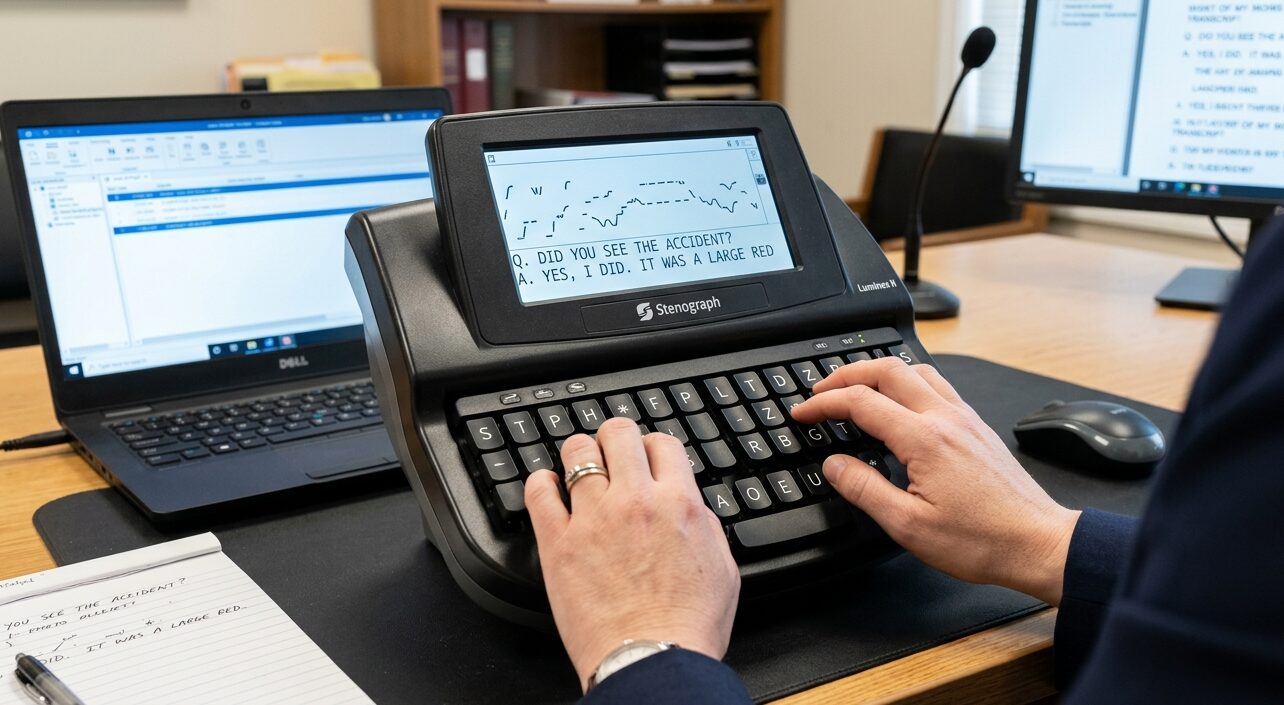
While QWERTY touch-typing generally caps human physical capability around 150 to 180 WPM, professional stenography allows for the real-time transcription of human speech at speeds exceeding 225 to 300 WPM.
Stenography achieves this through chording. Rather than pressing individual keys sequentially to spell a word, a stenographer presses multiple keys simultaneously, much like playing a chord on a piano. A steno machine features a specialized, minimalist layout with initial consonants on the left, vowels at the bottom pressed with the thumbs, and final consonants on the right. By pressing an entire phonetic chord and releasing it, the machine translates the stroke into a complete syllable, word, or even an entire multi-word phrase instantly. Steno eliminates the spacebar entirely; word boundaries are handled logically by the translation software based on strict dictionary rules and context.
Historically, stenography required multi-thousand-dollar proprietary hardware and software. However, the Open Steno Project and its flagship software, Plover, have democratized the discipline. Plover is an open-source engine that acts as a keyboard emulator, allowing any standard consumer keyboard with N-key rollover to function as a professional steno machine. Hardware like the Polyglot keyboard further bridges this gap, allowing a user to fluidly switch between standard QWERTY typing and steno chording on the exact same device.
15. Accessibility and Adaptive Devices
The standard keyboard layout assumes full bilateral manual dexterity, posing severe barriers for users with physical, motor, or cognitive disabilities. To bridge this gap, computing ecosystems deploy software tuning and highly specialized adaptive hardware.
Software accessibility interventions include Sticky Keys, an OS-level feature that allows users who lack the motor control to hold multiple keys simultaneously to press modifier keys sequentially. Filter Keys addresses tremors and involuntary spasms by forcing the OS to ignore brief, repeated, or accidental keystrokes, ensuring only deliberate, held presses are registered. Toggle Keys emits auditory tones when lock keys are pressed, aiding visually impaired users.
When software modifications are insufficient, physical hardware interventions are utilized. Keyguards are rigid metal or plastic overlays with holes cut directly over the keys. This allows a user to rest their hand, or a mouth-held head-pointer, directly on the board without triggering accidental inputs, physically guiding their strike into the correct key well. Large Print and Oversized Keyboards like the BigKeys provide a massive physical target area and high-contrast colorways. Expanded Keyboards like the Maltron are engineered specifically for users with cerebral palsy, allowing typing via head-sticks or toes. Conversely, half-QWERTY or chorded devices allow full 104-key access using only a single hand.
16. Market Trends and Consumer Choices
The mechanical keyboard sector has transitioned rapidly from a niche hobby into a major hardware vertical. Analysts project the global mechanical keyboard market, valued between $2.66 Billion and $2.79 Billion in 2026, to scale rapidly, reaching upwards of $7.61 Billion by 2033, demonstrating a robust Compound Annual Growth Rate of 11% to 15.4%.
This explosive growth is driven by several converging market vectors. The proliferation of competitive esports demands highly reliable, low-latency hardware. Approximately 70% of esports professionals utilize linear mechanical switches. Premium gaming brands dominate this space. Notable top-tier boards include the Asus ROG Strix Scope II 96, Razer BlackWidow V4 Pro, and the SteelSeries Apex Pro. For ultra-low latency magnetic actuation, the Wooting 60HE and 80HE dominate the competitive scene.
The technology has also trickled down into highly affordable brackets. Keyboards under $50 offer features previously reserved for premium tiers, including hot-swappable PCBs and pre-lubricated switches. Additionally, a vibrant, high-margin subculture exists around highly customized, limited-run boards. These are often funded through community Group Buys, where users fund the manufacturing of custom CNC-machined cases and unique keycap colorways months in advance. Hobbyists routinely spend between $200 and $600 assembling these bespoke builds.
17. Future of Smart Input
As computing shifts from physical desktop bounds into spatial and virtual environments, the keyboard is being forced to adapt far beyond physical plastic switches.
Typing in Augmented Reality currently suffers from gorilla arm fatigue and a complete lack of tactile feedback, rendering virtual mid-air keyboards highly inefficient. Researchers are developing technologies like PropType, an interface that projects a functional, highly precise virtual keyboard onto everyday physical objects. This allows the user to leverage the physical object for passive haptic feedback, drastically improving typing accuracy in headset environments without requiring a bulky physical peripheral.
By 2026, standard contact-based mechanical switches will likely face obsolescence in the premium tier, replaced almost entirely by Hall Effect magnetic switches. The ability to dynamically set actuation points in software, and utilize analog depth inputs exactly like a steering wheel or racing pedal, provides an insurmountable advantage in gaming and 3D application navigation.
Future peripherals are integrating directly with Large Language Models at the hardware level. Keyboards are being equipped with dedicated physical keys to instantly trigger contextual AI assistants to provide real-time typo correction and predictive macros. Furthermore, advanced haptic motors built into the chassis will provide variable physical vibration feedback, mimicking the click of a switch dynamically based on the software context, revolutionizing both accessibility and virtual immersion.
18. The Keyboard’s Reinvention
The keyboard represents a profound triumph of engineering path dependency. From the mechanical jams of the 1870s typewriter to the sub-millisecond, magnetically actuated rapid triggers of modern competitive gaming, this peripheral has continuously reinvented itself without ever discarding its foundational QWERTY architecture. Its evolution reflects both technological progress and the persistence of human habits, showing how familiar systems adapt to new demands while retaining their original identity.
Understanding this ecosystem is essential for optimizing the human-machine interface in the digital age. From the chemistry of durable PBT plastics to the electromagnetic precision of Hall Effect sensors, every detail contributes to performance, reliability, and user experience. The keyboard is not just a tool for input, it is a bridge between human thought and digital execution. Recognizing its complexity reminds us that even ordinary objects can embody centuries of engineering wisdom, blending tradition with innovation to shape the future of interaction.